Windows 11 is far more polished than its predecessor when it comes to power management. It offers detailed battery usage graphs, energy recommendations and, on many laptops, intelligent charging features. Yet it still does not show the one figure most owners want: how healthy the battery actually is. A battery health check on Windows 11 therefore means looking slightly beneath the surface.
This guide explains what Windows 11 shows you out of the box, how to extract the true health figure using the tools already on your system, how to automate regular checks, and which Windows 11 settings help a battery last longer.
What the Windows 11 Settings app shows, and what it does not
Open Settings > System > Power & battery. You will find:
- The current charge level and estimated time remaining.
- A Battery usage graph covering the last 24 hours or 7 days, with a breakdown of which apps consumed the most power.
- Energy saver (called Battery saver on earlier Windows 11 releases), which limits background activity and reduces visual effects when the charge falls below a threshold you choose.
- On supported hardware, power mode settings that balance performance against efficiency.
All of this concerns how the battery is being used, not how much capacity it has lost. For health, you need the design capacity and full charge capacity values that the battery controller reports to Windows. Divide the second by the first and multiply by 100, and you have it.
Method 1: Battery Health Check for an instant figure
The simplest approach on Windows 11 is a utility that performs the calculation for you. Battery Health Check reads both capacity values directly from the system and displays health as a single percentage in a modern interface that sits comfortably alongside Windows 11's design. It is free, open source and fully offline.
- Fetch the official archive from the download section.
- Extract the ZIP with Extract All in File Explorer.
- Launch a prebuilt executable if the repository provides one, or build it using the installation guide.
- Read your health percentage and wear level the moment the app opens.
Because the tool depends on standard Windows battery interfaces, it works across Lenovo, HP, Dell, ASUS, Acer, MSI, Microsoft Surface and other Windows 11 laptops.
Method 2: The battery report from Windows Terminal
Windows 11 ships with Windows Terminal as its default command-line host. You can open it by right-clicking the Start button and choosing Terminal.
powercfg /batteryreport /output "$env:USERPROFILE\Desktop\battery-report.html"This command saves the report straight to your desktop when run in a PowerShell tab. In a Command Prompt tab, use the equivalent path:
powercfg /batteryreport /output "%USERPROFILE%\Desktop\battery-report.html"Double-click the file to open it in Microsoft Edge or your preferred browser. Under Installed batteries, note the Design Capacity, Full Charge Capacity and Cycle Count. The Battery capacity history table further down shows how full charge capacity has changed since Windows was installed, which is especially informative on a laptop that was upgraded from Windows 10, because the history often continues through the upgrade.
Additional powercfg reports worth knowing
powercfg /energymonitors the system for 60 seconds and produces an energy efficiency report highlighting drivers or settings that prevent efficient sleep.powercfg /sleepstudyanalyses Modern Standby sessions and reveals what drained the battery while the laptop was supposedly asleep. Many Windows 11 laptops use Modern Standby, so this report is particularly relevant.
Method 3: PowerShell for precise, scriptable values
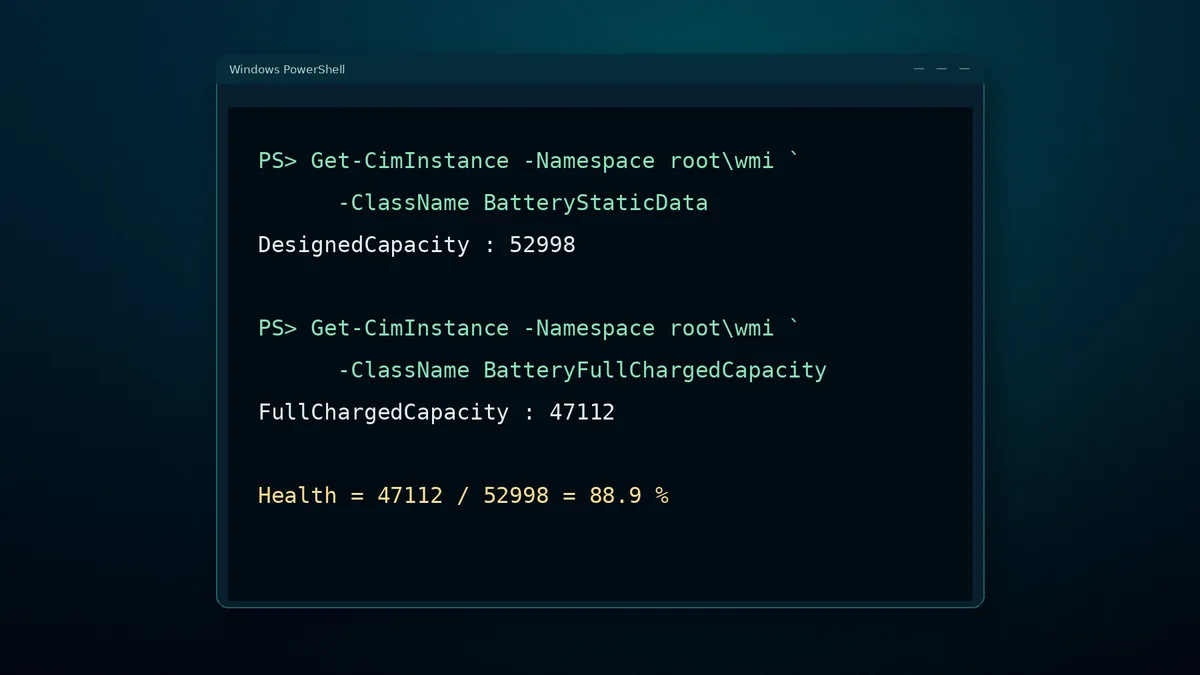
For a quick reading without opening a report, use the WMI battery classes in PowerShell:
$s = Get-CimInstance -Namespace root\wmi -ClassName BatteryStaticData
$f = Get-CimInstance -Namespace root\wmi -ClassName BatteryFullChargedCapacity
$c = Get-CimInstance -Namespace root\wmi -ClassName BatteryCycleCount -ErrorAction SilentlyContinue
[pscustomobject]@{
  DesignCapacity     = $s.DesignedCapacity
  FullChargeCapacity = $f.FullChargedCapacity
  HealthPercent      = [math]::Round($f.FullChargedCapacity / $s.DesignedCapacity * 100, 1)
  CycleCount         = $c.CycleCount
}
If the queries return nothing, reopen Terminal as administrator. Not every battery exposes cycle count, so that field may be empty even when the capacity figures are present.
Why not WMIC?
Many older tutorials recommend wmic path win32_battery. The WMIC tool has been deprecated for years, is disabled by default on recent Windows 11 releases and is being removed entirely. PowerShell's CIM cmdlets are the supported replacement and provide richer data.
Automating a monthly battery health check
Windows 11 makes it straightforward to log battery health automatically, so you build a history without remembering to check.
Step 1: Create a small script
Save the following as C:\Scripts\battery-log.ps1:
$s = Get-CimInstance -Namespace root\wmi -ClassName BatteryStaticData
$f = Get-CimInstance -Namespace root\wmi -ClassName BatteryFullChargedCapacity
$h = [math]::Round($f.FullChargedCapacity / $s.DesignedCapacity * 100, 1)
"$(Get-Date -Format yyyy-MM-dd),$($s.DesignedCapacity),$($f.FullChargedCapacity),$h" |
  Add-Content "$env:USERPROFILE\Documents\battery-health-log.csv"
Step 2: Schedule it
Open Task Scheduler, choose Create Basic Task, set a monthly trigger and select Start a program. Enter powershell.exe as the program and the following as arguments:
-NoProfile -ExecutionPolicy Bypass -File "C:\Scripts\battery-log.ps1"Tick Run with highest privileges in the task's properties if your system requires elevation for the WMI classes. Each month a new line is added to the CSV file, which you can open in Excel to chart your battery's decline over time.
Interpreting your Windows 11 result
| Reading | Assessment | Suggested action |
|---|---|---|
| 95% and above | Like new | Nothing required; recheck in a few months. |
| 85–94% | Healthy | Normal ageing. Consider enabling a charge limit. |
| 75–84% | Moderate wear | Use Energy saver on the move; monitor monthly. |
| 65–74% | Significant wear | Calibrate once to confirm, then price a replacement. |
| Below 65% | Worn out | Plan replacement, particularly if shutdowns occur. |
Keep the cycle count in mind when judging the result. A laptop at 82% after 600 cycles is ageing as expected. The same reading after 120 cycles suggests unusual stress from heat or constant full charge.
Windows 11 features that protect battery health
Smart and adaptive charging
Microsoft Surface devices offer Smart Charging, which can limit charge to around 80% when the device detects that it is usually plugged in. Many other manufacturers provide similar controls through their own apps: Lenovo Vantage's conservation mode, MyASUS battery care modes, Dell's primarily AC use setting, and HP's adaptive battery optimiser in the BIOS on business models. On a laptop that sits on a desk, enabling one of these is the most effective step you can take.
Energy saver
Set Energy saver to switch on automatically at 20% or 30%. It reduces background work and brightness, which shortens the depth of each discharge and lightens the load on the battery.
Power mode
Under Settings > System > Power & battery, choosing a balanced or efficiency-focused power mode on battery reduces heat as well as consumption. Heat is the greatest enemy of lithium-ion longevity.
Energy recommendations
On many Windows 11 builds, Settings > System > Power & battery > Energy recommendations lists quick changes such as shorter screen timeouts and dark mode. Applying them reduces the number of cycles the battery completes over a year.
Troubleshooting on Windows 11
The battery report lists no battery
Open Device Manager, expand Batteries and check for Microsoft ACPI-Compliant Control Method Battery. Uninstall it and restart if it shows an error. If it is missing, run your manufacturer's hardware diagnostics, which usually include a battery test.
Health changed sharply after a BIOS update
Firmware updates sometimes reset or recalibrate the fuel gauge. Complete one full charge and discharge cycle before drawing conclusions.
Modern Standby drains the battery overnight
Run powercfg /sleepstudy and look for components marked as top offenders. Updating the relevant driver, or disabling wake timers for that device, often solves the issue.
Readings differ between tools
Some utilities use milliamp-hours while Windows typically uses milliwatt-hours, and some round values. The health percentage should still agree within a percentage point or two because it is a ratio.
Checking battery health on Windows 11 business fleets
IT teams responsible for many Windows 11 laptops can collect battery data at scale with the same PowerShell classes. A script deployed through an endpoint management platform can read design and full charge capacity on every device and write the results to a central share or inventory system. Combined with purchase dates, this makes it possible to forecast how many batteries will fall below a chosen threshold, such as 70%, in the coming quarter, and to order replacements before staff are affected.
Keep the collection lightweight and transparent. Battery readings are technical data rather than personal information, but employees appreciate knowing what is gathered and why. A monthly or quarterly collection is sufficient, because battery health changes slowly.
Windows 11 on ARM and newer laptops
Laptops built on ARM processors, including many Copilot+ PCs, use the same Windows battery reporting interfaces, so the battery report and PowerShell methods work in the same way. These devices are often extremely efficient, which means they complete fewer cycles for a given amount of use. Even so, the same principles apply: heat and long periods at full charge remain the main causes of wear, and a charge limit is just as valuable on an efficient laptop that lives on a desk.
What to record each time you check
- The date of the reading.
- Design capacity and full charge capacity, so you can recalculate health if needed.
- The health percentage itself.
- Cycle count, where available.
- Any notable events, such as a BIOS update, a new charger or a period of heavy use in hot conditions.
These notes turn a series of numbers into an explanation. If health falls sharply after a summer of gaming on a hot desk, you know exactly why.
Common myths about Windows 11 and battery health
“Leaving the laptop plugged in always ruins the battery.” Modern laptops stop charging once full, so there is no overcharging in the traditional sense. The real issue is time spent at 100% and the heat that often accompanies it, which is why a charge limit is the better solution than constantly unplugging.
“Battery saver modes protect battery health.” Energy saver extends runtime on a single charge. It helps health only indirectly, by reducing the number of deep discharges over time.
“A fresh Windows installation restores battery capacity.” Reinstalling Windows can fix software that drains power, and it may reset the capacity history in the report, but it cannot change the chemistry of the cells. The health percentage after reinstalling will be the same as before.
Frequently asked questions
Does Windows 11 have a built-in battery health percentage?
Not in the Settings app on most systems. The figures needed to calculate it are available through the powercfg battery report and PowerShell.
Is the Windows 11 battery report different from Windows 10?
The format is essentially the same. Windows 11 adds more emphasis on Modern Standby and energy recommendations, but the health figures are read and presented in the same way.
Can I run a battery health check on Windows 11 without admin rights?
The powercfg battery report usually works from a standard account. PowerShell WMI queries may need elevation on some configurations.
Will upgrading to Windows 11 affect battery health?
The operating system does not change the battery's chemistry. Power efficiency can differ slightly between versions, but the capacity loss you see is caused by age, cycles and heat.
How often should I log battery health?
Monthly is ideal. It produces enough data points to show a meaningful trend without unnecessary noise.
Key takeaways
- Windows 11 does not display battery health in Settings, but the data is available through powercfg and PowerShell.
- Battery Health Check presents the result instantly as a single percentage.
- A short PowerShell script and Task Scheduler can log battery health every month automatically.
- Smart charging and manufacturer charge limits are the most effective ways to slow wear on desk-bound laptops.
- Use WMI through PowerShell rather than the retired WMIC command for scripting.
Conclusion
Windows 11 manages power intelligently, but it leaves battery health for you to uncover. With Battery Health Check you can see it instantly; with the powercfg report you gain a detailed history; and with PowerShell and Task Scheduler you can track it automatically for the life of the laptop. Pair those readings with a charge limit, Energy saver and sensible heat management, and your Windows 11 laptop will keep more of its original runtime for considerably longer. If you also use an older machine, our Windows 10 guide and the broader laptop guide cover the remaining platforms.