Few devices are charged as often as a phone. Most iPhones complete a cycle every day or two, which means their batteries age faster than those in laptops or tablets. The upside is that Apple has made a battery health check on iPhone genuinely easy: the essential figures are only a few taps away, and recent models reveal more detail than ever.
This guide explains exactly where to look, how to interpret what you see, how to dig deeper when the standard screen is not enough, and which habits genuinely help an iPhone battery last.
How iPhone batteries age
Like every modern phone, the iPhone uses a lithium-ion battery. Each time it charges and discharges, a little of its storage capacity is consumed by unavoidable chemical side reactions. The rate of loss depends on how many cycles the battery completes, how hot it gets and how long it spends at very high or very low charge.
Apple states that batteries in iPhone 14 and earlier models are designed to retain up to 80% of their original capacity at 500 complete charge cycles under ideal conditions. For iPhone 15 and later, Apple rates the battery to retain 80% at 1,000 cycles. These figures are benchmarks rather than guarantees, but they give you a useful yardstick for judging your own phone.
The standard iPhone battery health check
On any iPhone running a reasonably recent version of iOS:
- Open Settings.
- Tap Battery.
- Tap Battery Health (shown as Battery Health & Charging on some iOS versions and models).
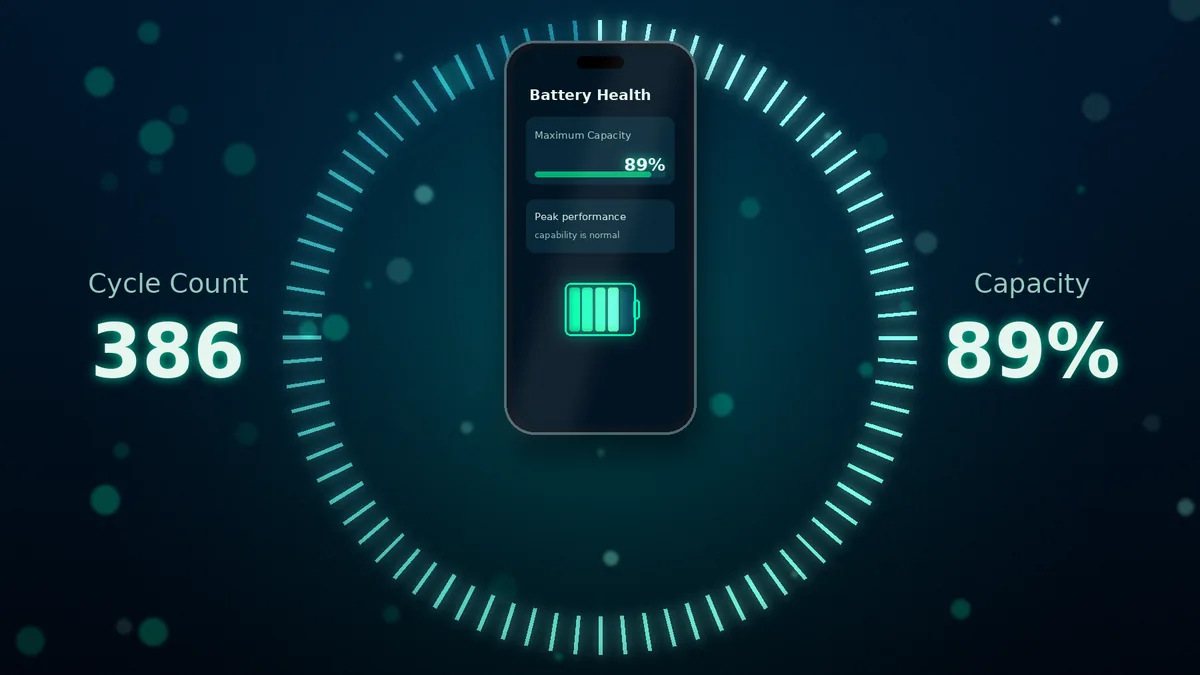
On this screen you will typically find two main items.
Maximum Capacity
This percentage compares the battery's current capacity with its capacity when new. It is the iPhone's equivalent of the design-versus-full-charge comparison used on laptops. A brand-new iPhone shows 100%; a phone that reads 87% can store 87% of the energy it could when it left the factory.
Peak Performance Capability
This section tells you whether the battery can still deliver the instantaneous power the processor needs during heavy tasks. As a battery ages, its internal resistance rises, and it may struggle to supply sudden spikes in demand. You will usually see one of these messages:
- “Your battery is currently supporting normal peak performance.” Everything is working as intended.
- A message that performance management has been applied. The iPhone experienced an unexpected shutdown because the battery could not deliver enough power, and iOS has applied management to prevent it happening again. You can disable this, but the shutdowns may return.
- “Your battery's health is significantly degraded.” Apple recommends a battery service.
- A message that iPhone is unable to determine battery health. This can indicate a problem with the battery or that a non-genuine battery has been fitted.
Cycle count, manufacture date and first use on newer iPhones
For years, iPhone owners could see Maximum Capacity but not the cycle count. That changed with the iPhone 15 generation. On iPhone 15 and later models, iOS displays the cycle count, the manufacture date of the battery and the date of first use. On current versions of iOS these details sit within the Battery Health screen; on some earlier iOS 17 releases they appeared under Settings > General > About.
The cycle count adds valuable context. A phone at 90% Maximum Capacity after 600 cycles is in excellent shape; one at 90% after 150 cycles has aged unusually quickly, which often points to heat exposure.
Going deeper: the analytics data method
If you own an older iPhone that does not show cycle count, you can often find it within the device's diagnostic logs. This method depends on having analytics sharing enabled, and the exact file contents vary between iOS versions, so treat it as a useful extra rather than a guaranteed route.
- Go to Settings > Privacy & Security > Analytics & Improvements.
- Make sure Share iPhone Analytics is switched on. If you have only just enabled it, wait a day for logs to be generated.
- Tap Analytics Data.
- Scroll to find the most recent file beginning with log-aggregated and open it.
- Use the share button to copy the text into a notes app, then search for CycleCount and MaximumCapacityPercent.
The values next to those keys show the cycle count and the capacity figure that iOS uses for the Battery Health screen. If you prefer not to share analytics with Apple, you can switch the setting off again once you have the information.
Checking an iPhone battery from a computer
Several desktop utilities can read an iPhone's battery details over a USB cable. On a Mac, coconutBattery includes an iOS device view that shows design capacity, current full charge capacity and cycle count. Other tools exist for Windows. When using any third-party software, download it only from the developer's official site and be cautious about granting access to your device.
Apple Support can also run remote diagnostics on your iPhone through a support session, and an Apple Store or Apple Authorised Service Provider can perform a full battery test in person.
What is a good iPhone battery health percentage?
| Maximum Capacity | Condition | Typical experience |
|---|---|---|
| 95–100% | Excellent | Essentially new. Full-day battery life for typical use. |
| 88–94% | Very good | Normal for a phone around one year old. |
| 80–87% | Good | Slightly shorter days; most users still manage without charging midday. |
| Below 80% | Degraded | Apple generally considers the battery consumed; replacement is worth considering. |
The 80% mark matters for another reason: if your iPhone is covered by AppleCare+, a battery that has fallen below 80% of its original capacity typically qualifies for a replacement under that coverage. Check the terms that apply in your region.
Features in iOS that protect battery health
Optimised Battery Charging
This feature learns your daily routine and holds the charge at around 80% overnight, finishing the final portion shortly before you usually unplug. It reduces the time the battery spends at full charge, which slows ageing. Find it in the Battery Health or Charging section of Settings.
80% Limit and adjustable charge limits
On iPhone 15 and later, iOS offers a fixed charging limit. Rather than learning your routine, it stops charging at the level you choose, with options from 80% upwards on recent iOS versions. If your phone easily lasts the day, an 80% limit is one of the most effective ways to preserve long-term capacity.
Low Power Mode
Low Power Mode reduces background activity, visual effects and some performance to extend runtime. It does not directly protect health, but reducing the number of deep discharges you make over time does help.
Clean Energy Charging
In some regions, iOS can time charging to coincide with cleaner electricity on the grid. This is primarily an environmental feature and works alongside Optimised Battery Charging.
Everyday habits that make a real difference
- Avoid heat above all. Do not leave your iPhone in a hot car or in direct sunlight, and remove thick cases if the phone becomes warm while charging. Apple's comfortable operating range is roughly 0 °C to 35 °C.
- Do not game or stream while fast charging if the phone gets hot. The combination of processor heat and charging heat is particularly hard on the cells.
- Use quality chargers and cables. Apple or MFi-certified accessories deliver stable power and communicate correctly with the phone.
- Store it at half charge. If you are putting a spare iPhone away for months, charge it to about 50% and switch it off.
- Keep iOS updated. Updates sometimes include battery management improvements and refined health calibration.
When a reading seems wrong
iOS periodically recalibrates its battery health estimate, and occasionally a reading can stall or jump. If Maximum Capacity has not changed in many months despite heavy use, or suddenly drops by several points, allow some time for recalibration and keep using the phone normally. Apple has, at times, included specific recalibration processes in iOS updates for certain models, during which the Battery Health screen reports that recalibration is in progress.
If you see a message stating that the battery could not be verified as a genuine Apple part, the Maximum Capacity figure may not be shown. This does not necessarily mean the battery is faulty, but its health cannot be assessed by iOS.
Repair or replace?
A battery replacement is usually far cheaper than a new phone and can make an older iPhone feel new again, especially if performance management has been applied. Consider replacing the battery when Maximum Capacity drops below 80%, when you see the “significantly degraded” message, when the phone shuts down unexpectedly, or if the screen begins to lift from the frame, which can indicate a swollen battery. In that last case, stop charging the phone and seek service promptly.
Checking battery health before buying a used iPhone
A second-hand iPhone can be excellent value, but its battery is the component most likely to have aged. Before you pay, ask to see the Battery Health screen in person and note the Maximum Capacity. On iPhone 15 and later, check the cycle count as well. A phone showing 84% after 700 cycles has been used heavily but treated reasonably; one at 79% after 250 cycles has probably suffered from heat. Also look for messages about performance management or an unverified battery, check that the screen sits flush with the frame, and factor the cost of a battery replacement into your offer if Maximum Capacity is close to or below 80%.
iPad and Apple Watch batteries
Battery health reporting on other Apple devices has historically been more limited than on iPhone. Apple Watch shows Maximum Capacity under Settings > Battery > Battery Health on recent watchOS versions. For iPad, recent models running current iPadOS versions have begun to show battery health and cycle count in Settings; on older iPads, a Mac utility such as coconutBattery or a visit to Apple Support remains the most practical way to see capacity figures.
Myths that do not hold up
“Closing apps saves battery health.” Force-quitting apps in the app switcher does not protect the battery and can increase power use when they must relaunch from scratch. “You must drain the battery fully before charging.” This advice applied to older nickel-based batteries; for lithium-ion, frequent partial charges are perfectly fine and generally gentler. “Charging overnight destroys the battery.” With Optimised Battery Charging or a charge limit enabled, iOS manages overnight charging carefully, so this concern is largely addressed by the system itself.
Frequently asked questions
Where is battery health on iPhone?
Open Settings, tap Battery, then tap Battery Health (or Battery Health & Charging on some versions).
How do I see the cycle count on my iPhone?
On iPhone 15 and later, it appears in the Battery Health section on current iOS versions. On older models, look for the CycleCount value in the analytics log files or use a computer utility.
Is 85% battery health good on an iPhone?
Yes. It indicates normal ageing and usually still provides a full day of typical use.
Does fast charging damage iPhone battery health?
Fast charging is managed by iOS and slows as the battery fills. Heat is the bigger concern, so avoid fast charging in hot conditions or under heavy load.
Can I check iPhone battery health online?
No website can read your iPhone's battery directly. Use the Battery Health screen, analytics data or a desktop utility connected by cable. Our online battery check guide explains why.
Key takeaways
- Maximum Capacity in Settings > Battery > Battery Health is the core health figure for every recent iPhone.
- Cycle count, manufacture date and first use appear on iPhone 15 and later; analytics logs or a Mac utility can reveal cycle count on older models.
- Peak Performance Capability messages tell you whether the battery can still meet sudden power demands.
- Below 80% Maximum Capacity, a battery replacement is usually the most cost-effective way to restore an iPhone's runtime.
- Heat is the most damaging factor, while Optimised Battery Charging and the 80% limit are the most effective protections.
Conclusion
A battery health check on iPhone starts with Settings > Battery > Battery Health, where Maximum Capacity and peak performance status tell you most of what you need to know. Newer models add cycle count and dates, and the analytics logs or a desktop utility can fill the gap on older ones. Combine regular checks with Optimised Battery Charging or an 80% limit, keep the phone cool, and you will slow capacity loss noticeably. For Android phones and tablets, continue with our mobile battery health guide.