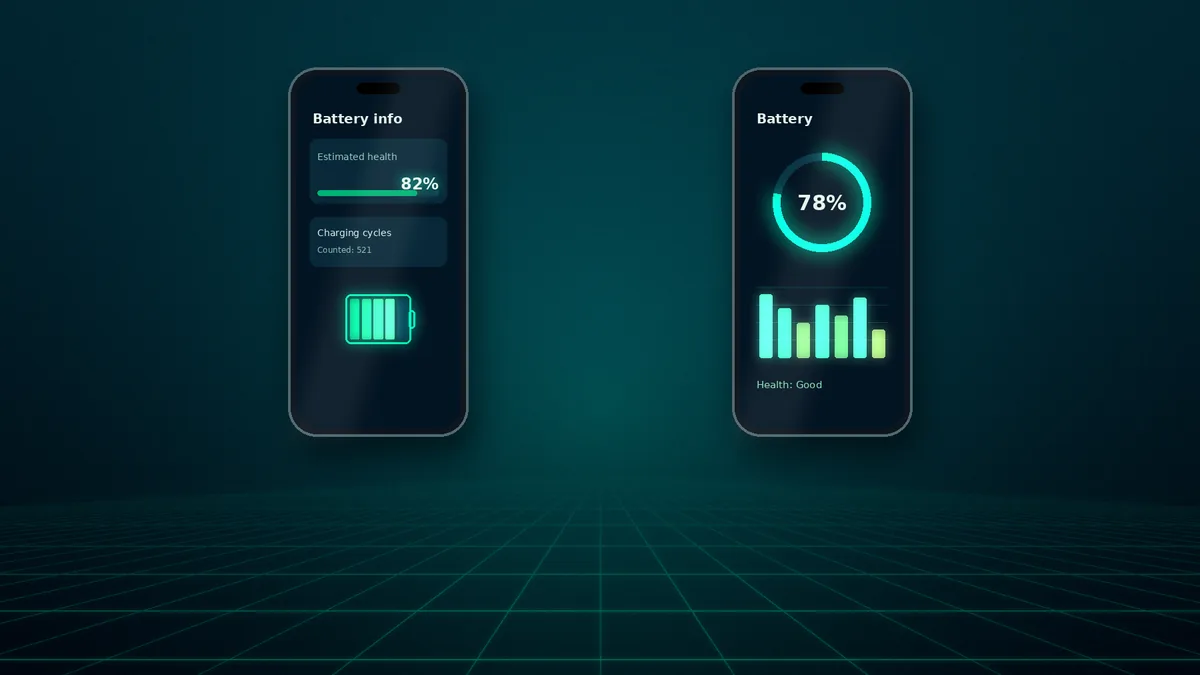
Checking a phone battery should be simple, yet on Android it depends heavily on who made your device. Some phones show a precise health percentage in Settings, others offer only a vague “Normal” label, and some reveal nothing at all without a little extra effort. A reliable battery health check on mobile therefore starts with knowing where your manufacturer keeps the information.
This guide brings those routes together: the built-in screens on the most popular Android brands, diagnostic menus, developer tools for advanced users, estimation apps, and the habits that keep a phone battery healthy for longer. For Apple devices, see our dedicated iPhone battery health guide.
Why mobile batteries age faster than laptop batteries
A phone battery is small, works hard and is charged constantly. Many people complete a full equivalent cycle every day, so a two-year-old phone may already have passed 600 or 700 cycles. Phones are also exposed to more heat than most laptops: they sit in pockets, on car dashboards and under pillows, and they run demanding tasks such as navigation, video calls and gaming while charging.
Typical smartphone batteries are designed to retain around 80% of their capacity somewhere between 500 and 1,000 cycles, with several recent flagships rated towards the higher end. Knowing your phone's current condition helps you decide whether a battery replacement, better charging habits or a new device makes sense.
What a mobile battery health check should tell you
The ideal check reports three things:
- Health or capacity percentage – how much of the original capacity remains.
- Cycle count – how many full equivalent charge cycles the battery has completed.
- Status – whether the battery controller has detected anything abnormal, such as overheating or a failing cell.
Android 14 introduced standard system interfaces for battery cycle count, manufacturing date and state of health, which makes it easier for manufacturers to surface this information. How much of it you actually see still varies by brand, model and software version.
Google Pixel
On recent Pixel phones, starting with the Pixel 8a and extending to newer models through system updates, Google shows battery information directly:
- Open Settings > Battery.
- Tap Battery health.
Depending on the model and Android version, you will see an estimated capacity percentage or a status message, and often the cycle count under Settings > About phone > Battery information. Pixel phones also include Adaptive Charging, which slows charging overnight so the battery reaches 100% just before your usual alarm, and newer models offer an option to limit charging to 80%.
Samsung Galaxy
Samsung provides several routes, and the most informative one depends on your model and One UI version.
Samsung Members diagnostics
- Open the Samsung Members app (install it from the Galaxy Store or Play Store if it is missing).
- Go to Support, then Phone diagnostics.
- Tap Battery status.
The result shows battery life as Normal, Weak or Bad, together with capacity information on many models. A Weak result means the battery has degraded noticeably; Bad suggests replacement.
Settings on recent One UI versions
On newer Galaxy devices, Settings > Battery and Settings > About phone > Battery information display additional details on supported models, which may include the battery's estimated capacity and cycle count. Samsung's Battery protection setting allows you to stop charging at 80% or choose an adaptive mode, which is strongly recommended for long-term health.
Diagnostic dial code
On many Galaxy phones, entering *#0228# in the Phone app opens a battery status screen showing voltage, temperature and charge level. It is a technical view rather than a health percentage, but it is useful for spotting abnormal temperatures or voltage readings.
OnePlus, Xiaomi, OPPO and other brands
- OnePlus: recent OxygenOS versions show Battery health under Settings > Battery on supported models, typically as a percentage, and offer optimised charging.
- Xiaomi, Redmi and POCO: HyperOS and later MIUI versions include battery health information on some models under Settings > Battery, sometimes in a protection or health sub-menu.
- OPPO and realme: ColorOS and realme UI often display a Battery health entry under battery settings on newer phones.
- Motorola, Sony and Nothing: these brands increasingly expose battery health and optimised charging options in Settings; check under Battery and About phone.
If your phone does not show anything in Settings, the methods below can fill the gap.
The universal testing menu
On some Android phones, dialling *#*#4636#*#* opens a hidden Testing menu with a Battery information page that lists battery health status, voltage and temperature. Many manufacturers have removed or restricted this menu on newer software, so it may simply do nothing on your device. Where it works, the “Health” field usually reports a status such as Good rather than a percentage.
Advanced: checking with ADB
If you are comfortable with developer tools, Android Debug Bridge provides a more technical view.
- Enable Developer options by tapping Build number seven times in About phone.
- Turn on USB debugging in Developer options.
- Connect the phone to a computer with the Android platform tools installed and accept the debugging prompt.
- Run:
adb shell dumpsys batteryThe output includes level, voltage, temperature and a health status code. On some devices, additional fields such as charge counter or cycle count appear. You can compare the charge counter at a known charge level against the battery's rated capacity to estimate health, although the result is approximate. Turn USB debugging off when you have finished.
Estimation apps
Battery monitoring apps such as AccuBattery estimate health by measuring how much charge flows into the battery during charging sessions and comparing it with the rated capacity. This approach has real value on phones that report nothing, but keep its limits in mind:
- The estimate improves over many charging sessions; the first readings are rarely reliable.
- Accuracy depends on the phone's current sensor, which varies in quality between models.
- Charging from very low to high levels produces better data than frequent small top-ups.
Treat app estimates as trends rather than exact figures. If an app reports 82% after several weeks of data, the battery is very likely somewhere close to that.
Tablets and other mobile devices
Android tablets generally follow the same patterns as phones from the same manufacturer, so Samsung Galaxy Tab owners can use Samsung Members, and so on. For iPads, battery health is not shown in Settings the way it is on iPhone for most models, although recent iPad models running current iPadOS versions have begun to expose battery health and cycle count; check Settings > Battery. For a full picture of laptops and Chromebooks, see our laptop battery health guide.
Interpreting your mobile result
| Health / status | What it means | What to do |
|---|---|---|
| 90% or more / Good | Battery in excellent condition | Keep current habits; consider an 80% limit. |
| 80–89% / Normal | Expected ageing | Monitor every couple of months. |
| 70–79% / Weak | Noticeably shorter days | Enable protection modes; plan for replacement. |
| Below 70% / Bad | Battery near end of useful life | Replace, especially if shutdowns or heat occur. |
Charging habits that genuinely help
- Turn on your phone's battery protection or adaptive charging feature. Stopping at 80% or delaying the last 20% until morning reduces time at full charge, one of the biggest causes of ageing.
- Avoid heat while charging. Remove thick cases if the phone gets warm, and avoid gaming or navigation on a fast charger in a hot car.
- Do not routinely run to 0%. Deep discharges stress the cells. Charging from around 20% is kinder.
- Prefer standard charging overnight. Fast charging is convenient, but slower charging generates less heat when time is not a concern.
- Use reputable chargers and cables. Poor-quality accessories can deliver unstable power.
- Keep the software updated. Battery management improvements often arrive through system updates.
Warning signs that override any percentage
Stop using and charging a phone, and seek professional repair, if the back panel or screen begins to separate from the frame, if the phone becomes unusually hot while idle, or if you notice a sweet or chemical smell. These are signs of a swollen or failing lithium-ion battery, and they are a safety issue regardless of what any health figure says.
Checking a used Android phone before you buy
When buying a second-hand Android phone, the battery is the part most likely to disappoint. Ask the seller to open Settings > Battery and Settings > About phone so you can look for a health percentage or cycle count. On a Samsung device, ask them to run the Battery status test in Samsung Members and show you the result. If neither is available, charge the phone to full and watch how quickly the level falls during a few minutes of video and browsing; a drop of several percent in five minutes on a mid-range phone suggests a worn battery. Finally, check the frame and back panel for any gaps that could indicate swelling.
Calibrating the battery percentage on Android
Android phones, like laptops, estimate charge using a fuel gauge. If the percentage behaves erratically, for example jumping from 30% to 5% or shutting down early, a single calibration cycle can help. Use the phone normally until it switches itself off, charge it uninterrupted to 100%, and leave it on the charger for another half hour. Do this only occasionally, because deep discharges add stress; it is a corrective step, not a routine. If the problem continues afterwards, the battery itself is likely worn and a health check will usually confirm it.
Common myths about Android batteries
“New phones need to be fully drained and charged a few times.” Lithium-ion batteries do not require conditioning; you can use a new phone normally from the first day. “Task killer apps extend battery life.” Android manages background processes itself, and forcing apps closed often leads to more power use when they restart. “Wireless charging is bad for the battery.” Wireless charging generates a little more heat than a cable, so it is worth using a well-ventilated pad and removing thick cases, but it does not damage the battery in itself. Applying the habits above matters far more than the charging method you choose.
Frequently asked questions
How do I check battery health on Android without an app?
Look under Settings > Battery and Settings > About phone first. Samsung owners can also use Samsung Members diagnostics, and some phones respond to the *#*#4636#*#* testing code.
Are battery health apps accurate?
They provide useful estimates after several charging sessions, but accuracy depends on the phone's sensors. Use them for trends rather than exact readings.
Does Android show battery cycle count?
Android 14 added support for it, and many newer phones now display it in Settings. Older phones and some brands may not.
Should I charge my phone to 100%?
Occasionally is fine. For daily use, an 80% limit or adaptive charging helps the battery last longer.
Is replacing a phone battery worthwhile?
Usually, yes. A new battery restores runtime at a fraction of the cost of a new phone, provided the rest of the device still meets your needs.
Key takeaways
- Start with Settings > Battery and Settings > About phone, because many newer Android phones now report health and cycle count directly.
- Samsung owners can rely on the Battery status test in Samsung Members for a clear Normal, Weak or Bad verdict.
- Diagnostic codes and ADB offer technical detail but vary between models and software versions.
- Estimation apps become meaningful only after several charging sessions and should be read as trends.
- Battery protection modes that stop at 80% are the simplest way to slow wear on any phone.
Conclusion
A battery health check on mobile is less uniform than on iPhone or Windows, but every Android user has options. Start with the built-in Settings screens, use Samsung Members or similar manufacturer tools where available, try the testing menu or ADB if you want technical detail, and rely on estimation apps for trends on phones that report nothing. Then put the results to work: switch on charge protection, keep the phone cool and replace the battery when it no longer carries you through the day.