
Windows 10 remains installed on a very large number of laptops, many of them now several years old. That age is exactly why a battery health check on Windows 10 is worth doing: an older notebook is the one most likely to have a tired battery, and its owner is the one most likely to be wondering whether to replace the pack or the whole machine.
The good news is that Windows 10 already gathers every figure you need. This guide shows four ways to read them, explains each line of the resulting report and covers the problems people most commonly encounter along the way.
A quick note on Windows 10 support
Microsoft ended mainstream support for Windows 10 on 14 October 2025, and the consumer Extended Security Updates programme that followed has now concluded as well. The battery tools described here continue to work exactly as before, because they rely on long-standing components of the operating system. However, if your battery check is part of a wider decision about whether to keep an older laptop, factor in the security implications of staying on an unsupported operating system. A machine with a healthy battery that meets the Windows 11 requirements may be worth upgrading; one with both a worn battery and incompatible hardware is often a candidate for retirement.
What Windows 10 can tell you about your battery
The Settings app in Windows 10 shows how much charge remains and which apps use the most power, but it does not show battery health. That information lives one level deeper, in data the battery's controller reports to Windows through the ACPI interface. The key values are:
- Design capacity – what the battery was built to hold.
- Full charge capacity – what it holds after a complete charge today.
- Cycle count – how many full equivalent charge cycles it has completed, where the manufacturer reports it.
Health is simply full charge capacity divided by design capacity, multiplied by 100. Every method below is a different way of reaching those same numbers.
Method 1: The fastest route with Battery Health Check
If you want an answer without typing commands, Battery Health Check is designed for exactly this. It reads the design and full charge capacity from Windows, calculates health and wear for you, and shows the result in a clean window. It runs offline, requires no account and works on Windows 10 laptops from any manufacturer.
- Download the official ZIP from the download section.
- Extract it to a folder of your choice.
- Run the compiled build if one is provided, or follow the installation steps to build it with Flutter.
- Open the program. Your battery health percentage appears immediately.
This is the most convenient option for people who check regularly, or who need to check several laptops in a row.
Method 2: Generate the Windows 10 battery report
The built-in report is the most detailed source of information on Windows 10, and it requires nothing to be installed.
Step 1: Open Command Prompt
Press the Windows key, type cmd and press Enter. A standard window is sufficient; administrator rights are not normally required for this command.
Step 2: Run the report command
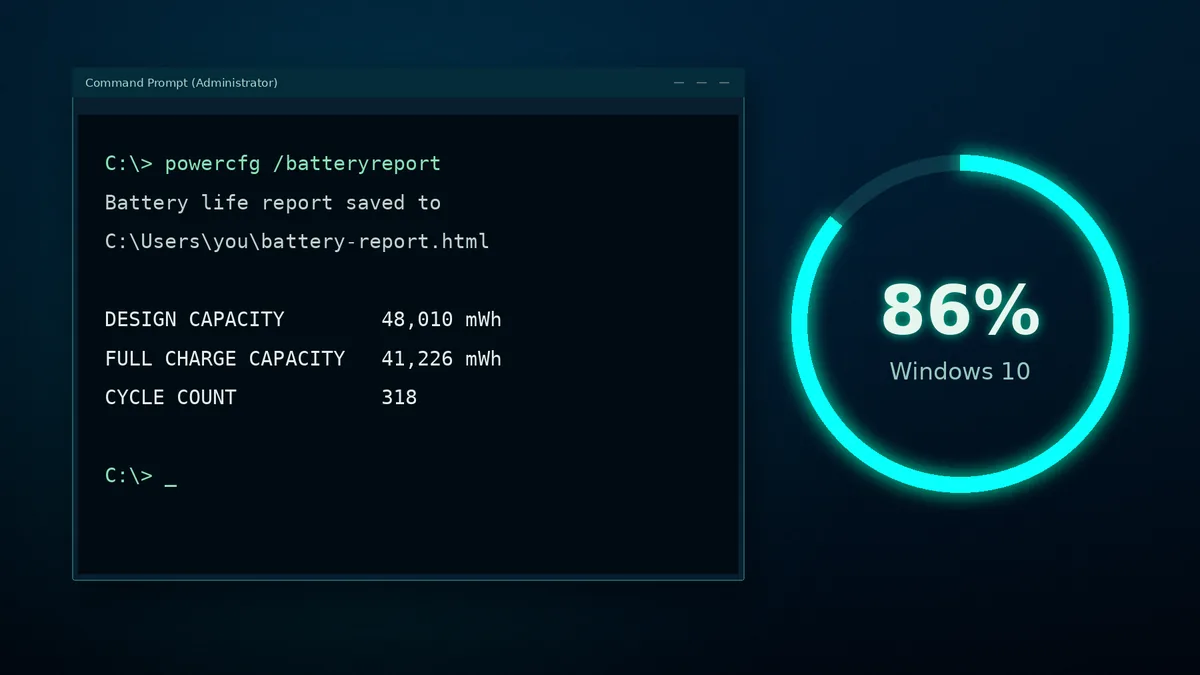
powercfg /batteryreportWindows replies with a message such as “Battery life report saved to C:\Users\YourName\battery-report.html”. To save it somewhere easier to find, specify a path:
powercfg /batteryreport /output "C:\battery-report.html"Step 3: Open the report
Open File Explorer, browse to the location shown and double-click the file. It opens in your default browser.
Reading the battery report section by section
The report can look intimidating at first, but only a few sections matter for a health check.
Installed batteries
Near the top you will find the battery's name, manufacturer, serial number and chemistry, followed by the three figures that matter most: Design Capacity, Full Charge Capacity and Cycle Count. If your laptop has two batteries, as some business models do, each appears in its own column.
Recent usage and battery usage
These tables log when the laptop was active, suspended or charging over the last few days. They are useful for diagnosing unexpected drain, but not for measuring health.
Usage history
This section summarises time spent on battery and on AC power over longer periods.
Battery capacity history
This is the most valuable table after the summary. It lists full charge capacity alongside design capacity for each period, often going back to when Windows was installed. Scrolling through it shows exactly how quickly your battery has aged and whether any sudden drop occurred.
Battery life estimates
Windows estimates how long the battery would last at full charge, both at its current capacity and at its design capacity. The difference between the two columns is a practical illustration of what wear has cost you in minutes.
Calculating health from the report: a worked example
Suppose the report shows:
| Field | Value |
|---|---|
| Design Capacity | 48,010 mWh |
| Full Charge Capacity | 41,226 mWh |
| Cycle Count | 318 |
Health is 41,226 ÷ 48,010 × 100 = 85.9%. Wear level is therefore about 14.1%. With 318 cycles, that is a perfectly normal rate of decline for a lithium-ion laptop pack. If the same battery had shown 70% at 150 cycles, heat or a cell problem would be worth suspecting.
Method 3: PowerShell for quick raw values
PowerShell can return the same figures without creating a report, which is useful for scripting or remote checks. Open Windows PowerShell and run:
$design = (Get-CimInstance -Namespace root\wmi -ClassName BatteryStaticData).DesignedCapacity
$full   = (Get-CimInstance -Namespace root\wmi -ClassName BatteryFullChargedCapacity).FullChargedCapacity
"Health: {0:N1} %" -f ($full / $design * 100)
If the command returns an access error or no data, close PowerShell and reopen it with Run as administrator. Some systems restrict these WMI classes to elevated sessions. If your machine has more than one battery, the commands return an array; check each value separately.
Older guides often suggest the wmic command for this purpose. WMIC is deprecated and is being removed from newer Windows releases, so PowerShell is the better long-term habit.
Method 4: Manufacturer utilities on Windows 10
Laptop makers frequently include their own battery tools:
- Lenovo Vantage shows battery condition, cycle count and a conservation mode that holds charge near 80% or below.
- HP Support Assistant includes a battery check that reports status and can recommend replacement on supported models.
- Dell provides battery information and charge settings through Dell Power Manager, Dell Optimizer or SupportAssist, depending on the model.
- MyASUS offers battery health charging modes with charge caps at around 60% or 80%.
These tools are useful for their charge-limit features, which slow wear considerably. Their health reports, however, are sometimes summarised as words rather than percentages, so cross-checking with the battery report is wise.
Troubleshooting common Windows 10 problems
“Unable to perform operation” when running powercfg
Make sure you typed the command exactly, with a space before the slash. If it still fails, open Command Prompt as administrator and try again.
The report shows no battery
Open Device Manager, expand Batteries and confirm that Microsoft ACPI-Compliant Control Method Battery is present. If it carries a warning symbol, right-click it, choose Uninstall device, then restart. Windows reinstalls the driver automatically. If the entry is missing altogether, the battery may be disconnected or faulty.
Cycle count is blank or zero
Not every battery reports cycle count to Windows. Your health calculation is still valid because it depends only on the capacity figures.
Full charge capacity is higher than design capacity
New batteries occasionally report this. It typically settles after several cycles and is not a fault.
Health dropped sharply in a short time
First, run a calibration cycle: charge fully, discharge normally to around 5–10%, then charge again without interruption. If the figure remains low, check whether the laptop runs hot, and inspect the chassis for any sign of swelling.
Windows shows “Consider replacing your battery”
Windows 10 displays this warning beside the battery icon when the controller reports significant degradation. Generate a battery report to see the actual figures before deciding.
Improving battery longevity on Windows 10
A few settings and habits make a measurable difference:
- Enable a charge limit in your manufacturer's utility if the laptop spends most of its time plugged in.
- Use Battery Saver from the Action Centre or Settings > System > Battery when working on battery. It reduces background activity and screen brightness.
- Review background apps in Settings > Privacy > Background apps and turn off anything you do not need.
- Keep drivers and firmware current. BIOS and embedded controller updates from your manufacturer sometimes improve battery reporting and charging behaviour.
- Manage heat. Clean dust from vents periodically and avoid soft surfaces.
Deciding what to do next
If your Windows 10 laptop shows 80% health or above, carry on and simply recheck monthly. Between 70% and 80%, adopt charge limiting and better thermal habits. Below 70%, price a replacement battery for your exact model, because a new pack is often inexpensive compared with a new laptop. And if the laptop is also unable to run Windows 11, weigh the battery cost against the broader benefit of moving to newer, supported hardware. Our Windows 11 battery guide explains what changes after an upgrade.
Checking several Windows 10 laptops in one session
Small offices, schools and families often need to check more than one machine. The most efficient approach is to copy Battery Health Check to a USB drive along with its supporting files and run it from there on each laptop, noting the health percentage as you go. If you prefer the built-in route, save the following line as battery.bat on the same drive:
powercfg /batteryreport /output "%~dp0%COMPUTERNAME%-battery.html"Running it on each laptop creates a report named after that computer directly on the USB drive, so you can review every machine later at your desk. Add the date to your notes and you have the start of a simple battery register that makes replacement planning far easier.
Understanding milliwatt-hours and milliamp-hours
Windows reports capacity in milliwatt-hours, a unit of energy. Battery labels and some third-party tools use milliamp-hours, a unit of charge. To convert between them, multiply or divide by the battery's nominal voltage: a 4,000 mAh pack at 11.4 V stores about 45,600 mWh. The units differ, but the health percentage is a ratio, so it remains the same whichever unit you use, as long as both values share the same unit.
Keeping a long-term record
Because the Windows 10 report includes a capacity history, it is tempting to rely on it alone. However, that history can reset after a clean reinstall of Windows or a major hardware change. Saving a copy of the report every few months, or noting the key figures in a spreadsheet, preserves your battery's full story regardless of what happens to the operating system. This record is particularly helpful when making a warranty claim, because it shows clearly when and how quickly capacity fell.
Frequently asked questions
Where does Windows 10 save the battery report?
By default, in the folder shown in the command output, which is usually your user folder such as C:\Users\YourName. Use the /output switch to choose a different location.
Do I need administrator rights to check battery health on Windows 10?
Usually not for powercfg. Some PowerShell WMI queries may require an elevated window depending on system configuration.
Can I check battery health on a Windows 10 desktop PC?
Only if it contains a battery. Desktops without one have nothing to report, and the command will indicate that no battery is installed.
Is the battery report safe to share?
It contains your computer name and battery serial number but no personal files. Remove those details if you share it publicly.
How accurate is the Windows 10 battery report?
It is as accurate as the battery controller's own estimate. A calibration cycle helps if the figures look inconsistent.
Conclusion
Windows 10 has everything you need for a reliable battery health check, even if it keeps the information out of sight. Use Battery Health Check when you want an instant percentage, the powercfg report when you want history and detail, and PowerShell when you want numbers for a script. Whichever you choose, compare full charge capacity against design capacity, watch the trend over time and act early. With an ageing laptop, that small habit is the difference between planning a replacement and being caught out by one.