Checking battery health is easy once you know how, but it is also easy to forget. Opening a terminal, remembering a command and hunting for a report file is just enough friction to make most people skip it. A battery health check shortcut removes that friction entirely. With one click or one key combination, the result appears in front of you, which makes regular monitoring a habit rather than a chore.
This guide shows how to build practical shortcuts on Windows, macOS, iPhone and Android, from a simple desktop icon to an automated script that calculates health for you.
Why a shortcut is worth the two minutes it takes
Battery health changes slowly, so its value lies in the trend. A single reading tells you where you are today; a reading every month tells you how quickly you are heading towards replacement. The people who benefit most from tracking are exactly the ones least likely to remember a command line. A shortcut solves that, and it also helps when you need to check several laptops quickly, such as in an office, a classroom or a repair shop.
Windows shortcut 1: launch Battery Health Check instantly
If you use Battery Health Check, the simplest shortcut is a direct link to the application.
- Open the folder containing the program's executable. If you built it from source, this is usually
build\windows\x64\runner\Releaseinside the project folder. - Right-click the executable and choose Show more options > Send to > Desktop (create shortcut) on Windows 11, or Send to > Desktop (create shortcut) on Windows 10.
- Rename the new desktop icon to something clear, such as “Battery Health”.
- Optionally, right-click the shortcut and choose Pin to Start or Pin to taskbar.
Leave the executable in its original folder. It relies on the files beside it, so the shortcut should point to it rather than replace it. If you have not set the tool up yet, the installation section walks through it.
Windows shortcut 2: one-click battery report
This shortcut generates the built-in Windows battery report and opens it immediately, without typing anything.
- Right-click an empty area of the desktop and choose New > Shortcut.
- In the location box, paste the following as a single line:
C:\Windows\System32\cmd.exe /c powercfg /batteryreport /output "%USERPROFILE%\Desktop\battery-report.html" && start "" "%USERPROFILE%\Desktop\battery-report.html"- Click Next, name it “Battery Report” and click Finish.
Double-clicking the icon now creates a fresh report on your desktop and opens it in your browser. Each run overwrites the previous report, so your desktop does not fill up with old files.
Give it a friendlier icon
Right-click the shortcut, choose Properties, then Change Icon. Windows may warn that cmd.exe contains no icons; click OK and browse to C:\Windows\System32\imageres.dll or shell32.dll, both of which include battery-style and power icons.
Windows shortcut 3: assign a keyboard hotkey
Any desktop or Start menu shortcut can be given a global key combination.
- Right-click the shortcut and choose Properties.
- Click in the Shortcut key field.
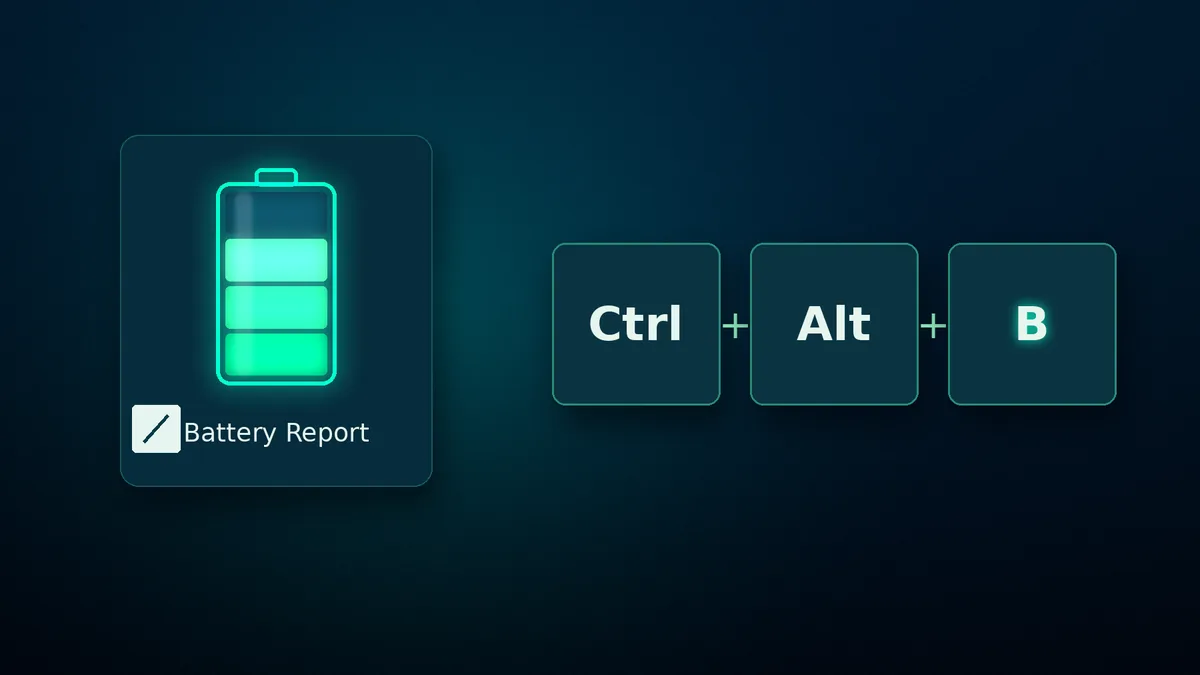
- Press a letter, for example B. Windows automatically turns it into Ctrl + Alt + B.
- Click OK.
Pressing Ctrl + Alt + B from anywhere now launches your battery check. Choose a letter that does not clash with shortcuts in the applications you use most.
Windows shortcut 4: a script that calculates health for you
The battery report is detailed, but you still need to divide two numbers. A small PowerShell script can do that and display the answer in a pop-up message.
Create a file named battery-health.ps1 in a folder such as C:\Scripts with this content:
$s = Get-CimInstance -Namespace root\wmi -ClassName BatteryStaticData
$f = Get-CimInstance -Namespace root\wmi -ClassName BatteryFullChargedCapacity
$h = [math]::Round($f.FullChargedCapacity / $s.DesignedCapacity * 100, 1)
Add-Type -AssemblyName PresentationFramework
[System.Windows.MessageBox]::Show("Battery health: $h %`nDesign: $($s.DesignedCapacity) mWh`nFull charge: $($f.FullChargedCapacity) mWh", "Battery Health Check")
Then create a desktop shortcut with this target:
powershell.exe -NoProfile -ExecutionPolicy Bypass -WindowStyle Hidden -File "C:\Scripts\battery-health.ps1"If the message shows no values, open the shortcut's Properties > Advanced and tick Run as administrator, as some systems restrict the WMI battery classes to elevated sessions. You can add a Ctrl + Alt hotkey to this shortcut in exactly the same way as before.
Windows shortcut 5: the Run dialog
For a lightweight option with no files at all, press Windows + R, type the following and press Enter:
cmd /c powercfg /batteryreport /output %TEMP%\br.html && start %TEMP%\br.htmlThe Run dialog remembers recent entries, so next time you only need to press Windows + R, select the entry with the arrow keys and press Enter.
macOS: a battery health check with the Shortcuts app
On a Mac, the quickest manual route is System Settings > Battery > Battery Health. To build a one-click shortcut that also shows the cycle count:
- Open the Shortcuts app and create a new shortcut.
- Add the Run Shell Script action.
- Enter the script below.
- Add a Show Result action after it.
system_profiler SPPowerDataType | grep -E "Cycle Count|Condition|Maximum Capacity"Name the shortcut “Battery Health”. In the shortcut's details, you can add a keyboard shortcut, pin it to the menu bar or add it to the Dock. Running it displays the cycle count, the condition and, on many models, the maximum capacity percentage. If Shortcuts asks for permission to run scripts, enable it under the app's Advanced settings.
Users who prefer Terminal can create an alias in their shell profile, for example alias bh='system_profiler SPPowerDataType | grep -E "Cycle Count|Condition|Maximum Capacity"', and then simply type bh.
iPhone: the quickest route to Battery Health
Apple does not allow third-party shortcuts to read Maximum Capacity directly, and the Shortcuts app's battery action returns only the current charge level. The fastest practical approach is to make the Battery Health screen easier to reach:
- Open Settings, pull down on the main screen to reveal the search field, and type Battery Health. Search remembers recent results, so it soon becomes a two-tap route.
- Ask Siri to “open Battery settings”, then tap Battery Health.
- Create a personal automation in the Shortcuts app that reminds you on the first day of each month to check battery health.
For more detail, including cycle count on older iPhones, see the iPhone battery health guide.
Android: home screen shortcuts
Android launchers make it easy to place deep links on the home screen:
- Settings widget or shortcut: many launchers let you long-press the home screen, choose Widgets, and add a Settings shortcut that opens the Battery page directly.
- Samsung: long-press the Samsung Members icon to reveal app shortcuts, or add the app to your home screen so Phone diagnostics is two taps away.
- Estimation apps: monitoring apps commonly offer home screen widgets that display estimated health alongside the current charge.
Our mobile battery health guide explains where each brand stores the underlying information.
Turning a shortcut into a monitoring habit
A shortcut makes checking easy; a routine makes it useful. Consider these simple steps:
- Set a recurring calendar reminder on the first day of each month.
- Run your shortcut and note the date, health percentage and cycle count.
- Keep the notes in one place, such as a spreadsheet or a notes app.
- Review the trend every few months. A steady decline is normal; a sudden fall deserves investigation.
On Windows, you can go further and use Task Scheduler to log results automatically, as described in our Windows 11 guide.
Creating a shortcut for multiple users or computers
If you manage several laptops, place your battery shortcut and script in a shared location so they can be copied quickly. For the report shortcut, store it in the public desktop folder, C:\Users\Public\Desktop, which makes it appear for every user on that computer. For the PowerShell version, keep the script in a fixed path such as C:\Scripts on each machine, so the same shortcut works everywhere. In larger environments, IT teams can deploy both through their usual management tools.
Saving a dated history automatically
A small change to the report shortcut keeps every report rather than overwriting it. Replace the output path with a dated file name:
C:\Windows\System32\cmd.exe /c powercfg /batteryreport /output "%USERPROFILE%\Documents\battery-%DATE:~-4%%DATE:~3,2%%DATE:~0,2%.html"The date format inside the variable depends on your regional settings, so check the first file name it produces and adjust the character positions if necessary. Over time, the Documents folder fills with a neat archive of reports you can compare side by side.
Shortcut for Linux users
On Linux, add an alias to your shell configuration file, such as ~/.bashrc:
alias bh='upower -i $(upower -e | grep BAT) | grep -E "energy-full|capacity|percentage"'Reload your shell and type bh to see design capacity, current full capacity and the capacity percentage in one line. Many desktop environments also allow you to bind a terminal command to a keyboard shortcut in their settings.
Keeping your shortcuts safe
Only run scripts you understand or have written yourself. The commands in this guide read battery information and create a report; they do not modify system settings. If you copy similar scripts from elsewhere, read them first, and be cautious of any that download files from the internet or request administrator rights without a clear reason.
Troubleshooting shortcut problems
The shortcut opens a window that closes immediately
This usually means the command contains a typing error. Open the shortcut's Properties and compare the target carefully with the examples above, paying attention to quotation marks and spaces. You can also paste the same command into Command Prompt to see any error message.
The report opens but shows old data
Check that the output path in the shortcut matches the file being opened. If they differ, Windows will open an older report while saving the new one elsewhere.
PowerShell says running scripts is disabled
The -ExecutionPolicy Bypass argument in the shortcut target applies only to that launch and avoids changing system-wide settings. Make sure it is included exactly as shown.
The hotkey does nothing
Hotkeys work only for shortcuts located on the desktop or in the Start menu folders. If the shortcut lives elsewhere, move it to one of those locations and assign the key combination again.
Frequently asked questions
Is there a built-in keyboard shortcut for battery health on Windows?
No. You can create one by assigning a Ctrl + Alt key combination to a desktop or Start menu shortcut, as shown above.
Will running the shortcut repeatedly affect my battery?
No. Generating a report or reading capacity values does not discharge or stress the battery.
Why does my PowerShell shortcut show empty values?
Some systems require administrator rights for the battery WMI classes. Set the shortcut to run as administrator.
Can an iPhone shortcut display Maximum Capacity?
Not directly. Apple does not expose that value to Shortcuts, so the best approach is quick access to the Battery Health screen.
Can I use these shortcuts on a work laptop?
Usually, yes, though company policies may block scripts. Battery Health Check or the battery report shortcut are the most likely to be permitted.
Key takeaways
- A desktop shortcut to Battery Health Check is the fastest route to a clear health percentage on Windows.
- A cmd-based shortcut can create and open the built-in battery report with a single double-click.
- Any desktop or Start menu shortcut can be given a Ctrl + Alt hotkey in its Properties.
- On macOS, the Shortcuts app can run a one-line script showing cycle count and condition.
- Phones offer no direct health shortcuts, but search, Siri and home screen links bring the right screen within two taps.
Conclusion
A battery health check shortcut turns a task you might do once a year into one you do every month without thinking. On Windows, link directly to Battery Health Check, create a one-click report, add a Ctrl + Alt hotkey or use a script that shows the health percentage in a message. On a Mac, the Shortcuts app does the same in seconds, while iPhone and Android users can bring the relevant screens within a tap or two. Set it up once, and you will always know exactly how your batteries are holding up.